Factory Reset NAO or Pepper Robot Using Choregraphe
Steps to Factory Reset NAO Robot or Pepper Robot using Choregraphe.

1. On your computer, download the NAOqi System Image for your Robot.
2. Launch Choregraphe.
3. Plug the Battery Charger into the Robot.
4. Turn the Robot ON.
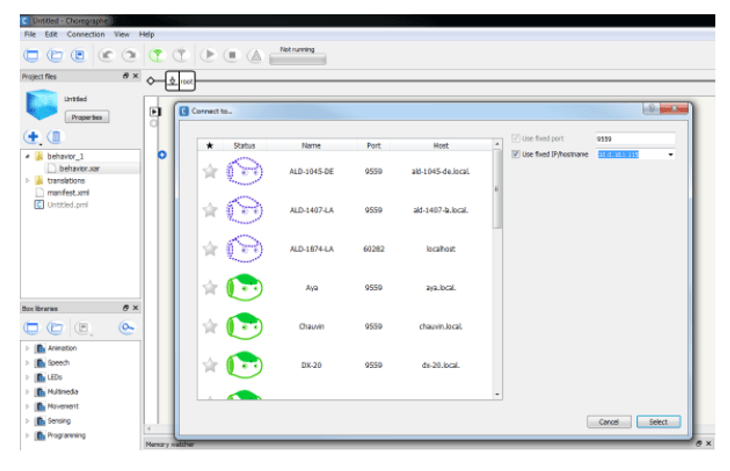
5. Connect the Robot to Choregraphe.
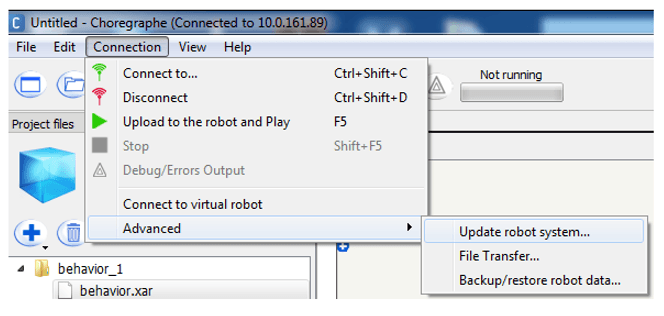
6. On the top menu, click “Connection”, “Advanced” and then “Update robot system”
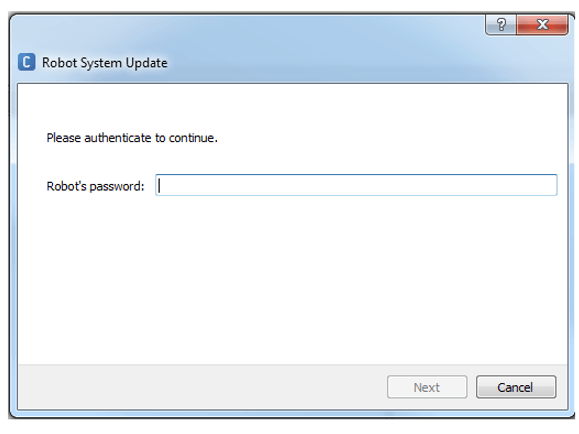
7. Enter the Robot’s password (“nao” by default)
8. Contact Support@RobotLAB.com for the system image.
9. After you receive the image select the file and click “Open”
11. Select “Yes, I want to apply a factory reset to delete all the user data” and click “Factory reset and update”
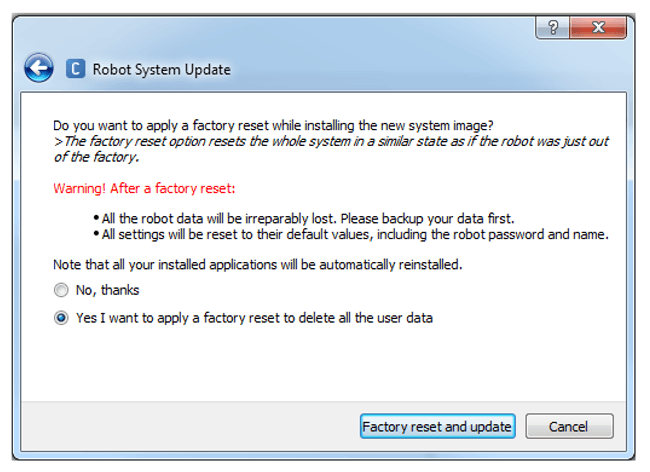
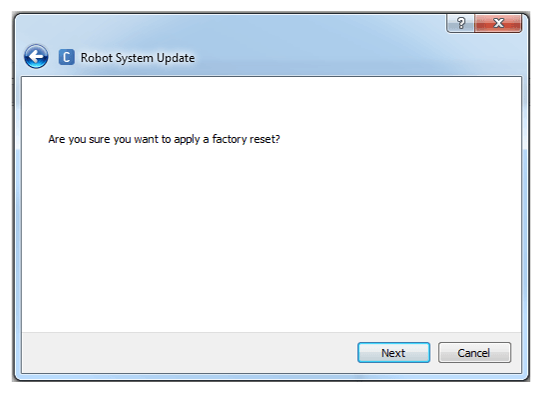
10. Click “Next”
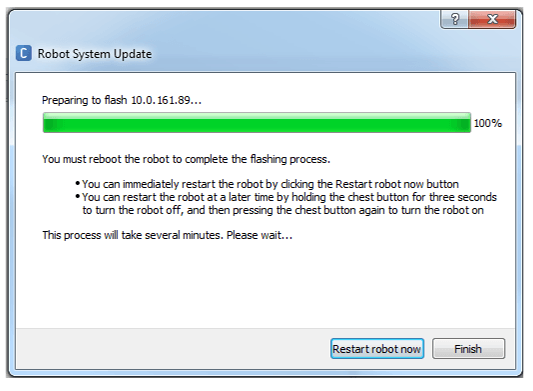
11. Once the process is over, click “Restart robot now”
12. After the Robot has rebooted, NAO stands up and the Chest Button LED blinks green. Check that the factory Reset has been properly done: press the Chest Button once to hear NAO’S notification.
The Robot says: “I have successfully updated my system, I am now running version XXXX. I have successfully completed my factory reset, all my data and settings have been reset.